How to Create Gender-Balanced Groups for Classrooms, Workshops, and Team Events
Splitting a class or a workshop into groups takes seconds. Getting those groups to feel fair takes longer — especially when a plain random draw leaves one table all boys and another all girls.
Gender-balanced grouping is one of those small logistics decisions that quietly shapes the room. This walkthrough shows how to handle it with the free Random Group Generator: paste a list, tag each participant, switch on balancing, and generate.
Why gender balance is worth the extra step
When groups skew heavily by gender, the dynamic shifts in ways that are easy to miss. Mixed groups tend to surface a wider range of perspectives and distribute speaking time more evenly than single-gender ones. In a classroom, that means more students testing ideas out loud and more chances for everyone to hold a leadership role. In a corporate workshop, it means fewer echo chambers and more genuinely varied solutions.
There is a second, quieter reason: balance signals intentionality. Participants notice when the grouping looks considered from the start, and that framing tends to head off the "why am I always with the same people" conversation before it starts.
Where hand-sorting breaks down
Most teachers and facilitators have tried to balance groups manually. It usually looks like this:
- Time. Scan the roster, guess gender from first names, shuffle people between lists, recount. Ten minutes or more, gone.
- Accuracy. Gender-neutral names trip up guesswork, and participants who don't fit a binary field have no clean place to go.
- Hidden bias. Even well-intentioned facilitators tend to separate the loudest voices and cluster the quiet ones — usually without realising it.
- Scale. A 200-person conference roster is simply not hand-sortable.
A true random shuffle with a balance constraint removes the guesswork and the unconscious influence in one move.
The five steps
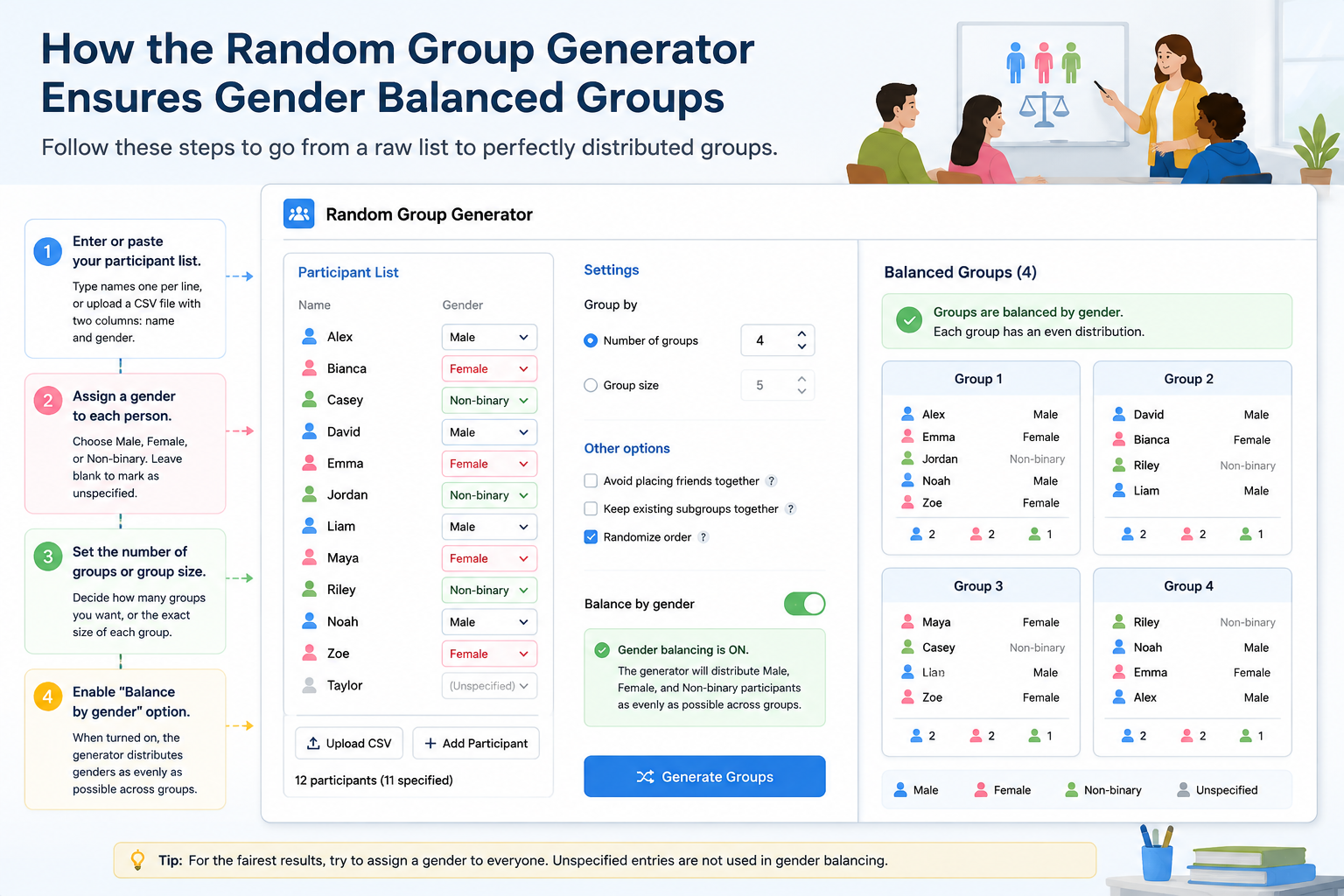
- Enter or paste your participant list. Type one name per line, or upload a CSV with two columns: name and gender.
- Assign a gender to each person. Next to every name, choose Male, Female, or Non-binary. Leave the field blank and the entry is treated as unspecified — it is not used for gender balancing.
- Set the number of groups or the group size. Four groups of five, or groups of exactly four members — whichever fits your activity.
- Turn on "Balance by gender." This is the setting that matters. With it enabled, the generator distributes participants so each group holds as close to an equal number of each gender as the roster allows.
- Click "Generate Groups." The list is shuffled randomly while the gender constraint is respected.
If the totals don't divide evenly, the extra participants are placed so the imbalance is spread as thinly as possible across all groups rather than dumped into one.
Worked example: a 7th-grade science lab
Ms. Rivera wants mixed-gender lab groups of four. Her roster has 28 students — 13 boys and 15 girls. Doing this by hand would mean writing names on cards and re-sorting until the numbers looked right.
Instead she pastes the class spreadsheet into the Random Group Generator, tags each student's gender, sets group size to 4, and enables gender balancing. One click produces seven groups of four, each as close to even as a 13/15 split permits. She shares the groups and moves straight into the experiment. The same workflow covers gym teams, book-club discussions, or any activity where the mix matters.
When the numbers don't divide evenly
Take 23 students — 11 male, 12 female — split into four groups. Three groups come out at 3 males / 3 females, and one group at 2 males / 3 females. No group is overwhelmingly one gender, which is the outcome that matters. Compare that with a purely random draw, where an all-one-gender group is a very live possibility.
Beyond whole groups
- Pairs. For peer review or partner work, head to the Random Pair Generator and apply the same gender-balance setting. Pairs come out mixed-gender wherever the totals allow.
- Group names. Use the Group Name Generator to give each balanced group a theme name. It builds a bit of team identity without the awkward pause of inventing one on the spot.
- Large rosters. If your spreadsheet already has a gender column, import it directly and the balancing rule is applied automatically — no manual tagging.
- Breakout rooms. Generate the groups, then paste the results straight into Zoom, Microsoft Teams, or Google Classroom assignments.
Frequently asked questions
Can I get perfectly balanced groups if the totals aren't even?
Perfect balance is only possible when the participant count divides cleanly by both the number of groups and the desired gender ratio. When it doesn't, the algorithm minimises the difference so no group is overwhelmingly one gender. With 11 males and 13 females across 4 groups, you get 3M/3F, 3M/3F, 2M/4F, and 3M/3F — a much fairer spread than chance would produce.
What about non-binary participants, or people who'd rather not specify?
The tool includes a Non-binary option and also accepts a blank gender field. When balancing is on, all gendered entries are distributed evenly first, then unspecified participants are placed randomly across the groups. Everyone is included; balance is preserved as far as the data allows.
Does this work for 100+ person events?
Yes. The generator processes lists of hundreds of rows and returns balanced groups within seconds, so conference-scale rosters are no obstacle.
Can I balance on gender and skill level or department?
The core tool balances one criterion at a time. A workable two-step approach: generate balanced groups by gender first, then swap a couple of members between groups to account for skill or department. You can also use the "Exclude Together" feature to keep specific individuals apart, or run the generator twice with different constraints and pick the arrangement that fits best.
How do I import a roster from Google Sheets or Excel?
Build a two-column spreadsheet with Name and Gender, and save it as CSV. In the generator, click Import CSV, select the file, and the list populates with genders attached. Keep the gender column to exactly "Male," "Female," or "Non-binary" so the values map correctly.
Try it on your next roster
Balanced groups shouldn't cost you ten minutes of counting. Try it free at random-group-generator.com — no sign-up, and your participant data stays in your browser.
评论
发表评论